Teleprompters
Introducing Lenslines Teleprompter for Windows
A teleprompter that sits where your eyes need to be, right under the camera. Here is what it does, who it is for and what it costs.
By Abhijeet Naik · · 6 min read

Today we are introducing the Lenslines teleprompter for Windows. It shows your script in a small black notch at the top of your screen, right under your webcam, so you can read your notes and still look like you are talking to people. It scrolls with your voice, pauses when you point at it, and stays out of your screen shares and recordings. Lenslines is available now on the Microsoft Store for $9.99, once. No subscription, no account.
Here is the short version in 45 seconds.
Why build a teleprompter that lives under the camera?
On a video call, the camera sits at the top of your screen. Your notes sit somewhere else: in a document, on a second monitor, on a sticky note under the screen. Every time you glance at them, your eyes leave the lens, and the people on the other side see you look away.
Most teleprompter apps open a big scrolling window in the middle of the screen. That helps a little, but your eyes still drift down, and the window shows up the moment you share your screen.
Mac users have had small notch prompters near the camera for a while. Windows didn't have one that felt like it belonged there. Lenslines brings that idea to Windows, and adds a few things we wanted for our own calls. If you want the full story on eye contact, our guide on keeping eye contact on video calls explains why a few centimeters make such a difference.
Your script, right under your webcam
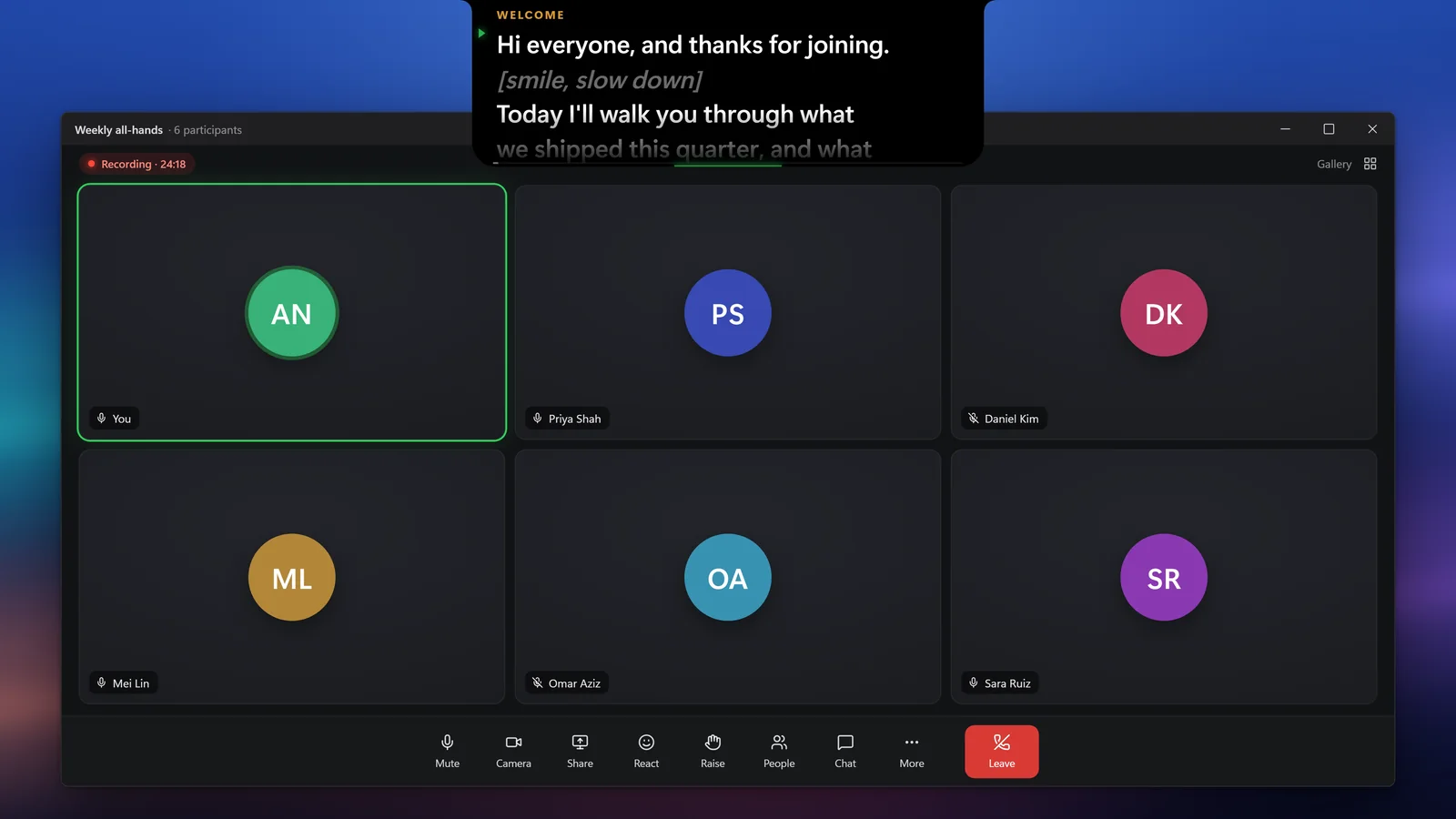
Press Ctrl+Alt+P and the notch springs open from the top edge of your screen, right below the camera. It picks the right screen on its own: the built-in screen if you use a laptop webcam, or your main display if you use an external one.
You can drag it along the top edge, move it to another monitor, or resize it from its edges and corners. When you need it out of the way, it tucks back into a small pill and stays there until you call it again.
Hidden when you share your screen
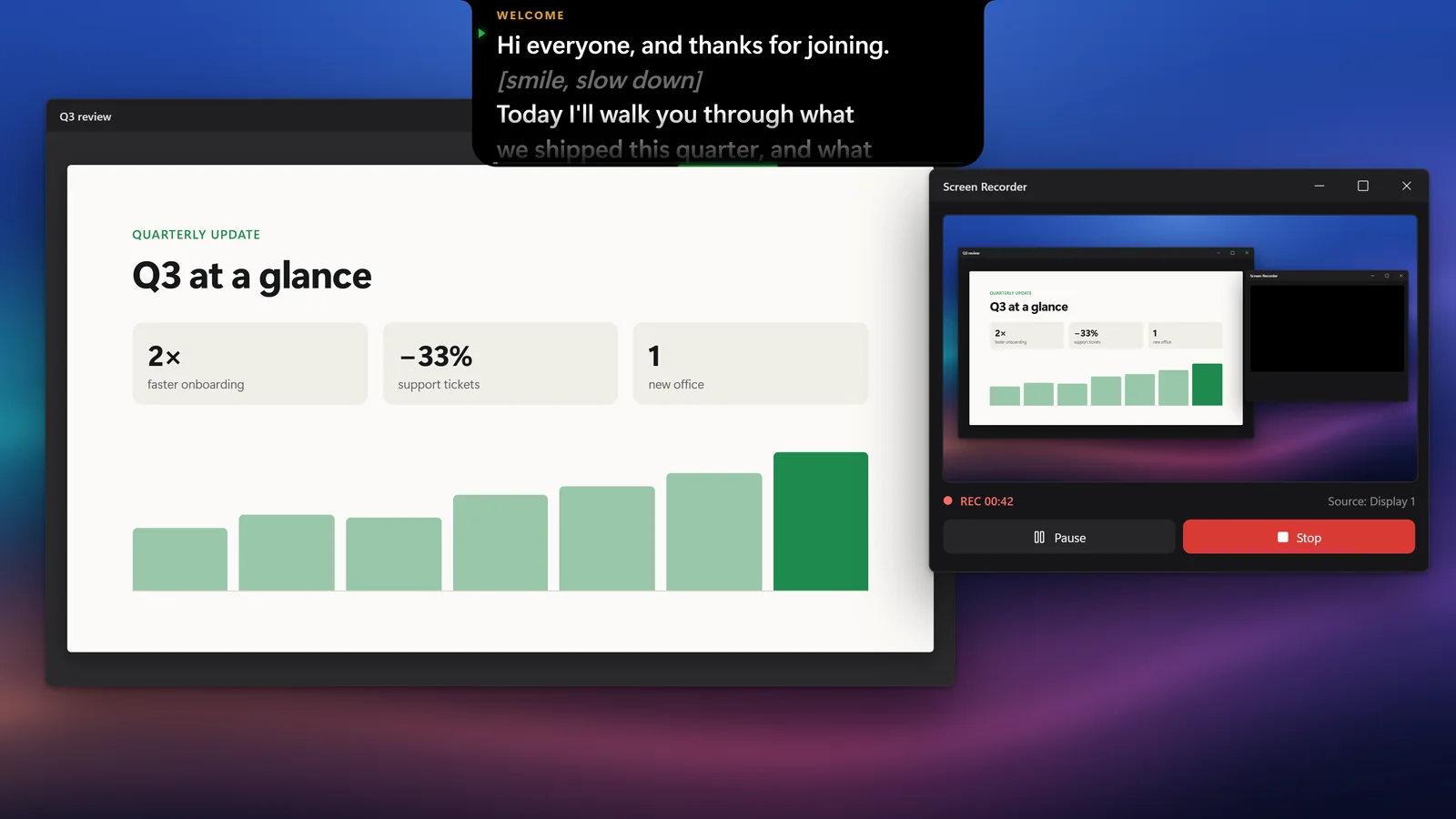
Lenslines uses the screen capture protection built into Windows. You see the prompter on your monitor, but it doesn't show up when you share your screen or record it. That works in Zoom, Microsoft Teams, Google Meet, OBS, Loom and the Snipping Tool, and in nearly every other app that uses Windows' standard capture.
Two honest notes. A phone or camera pointed at your monitor will still see it, because it is on your screen. And if you want the prompter visible, for example in a tutorial, you can switch the protection off in one click. There is more detail on our page about the teleprompter hidden from screen sharing.
It scrolls with your voice
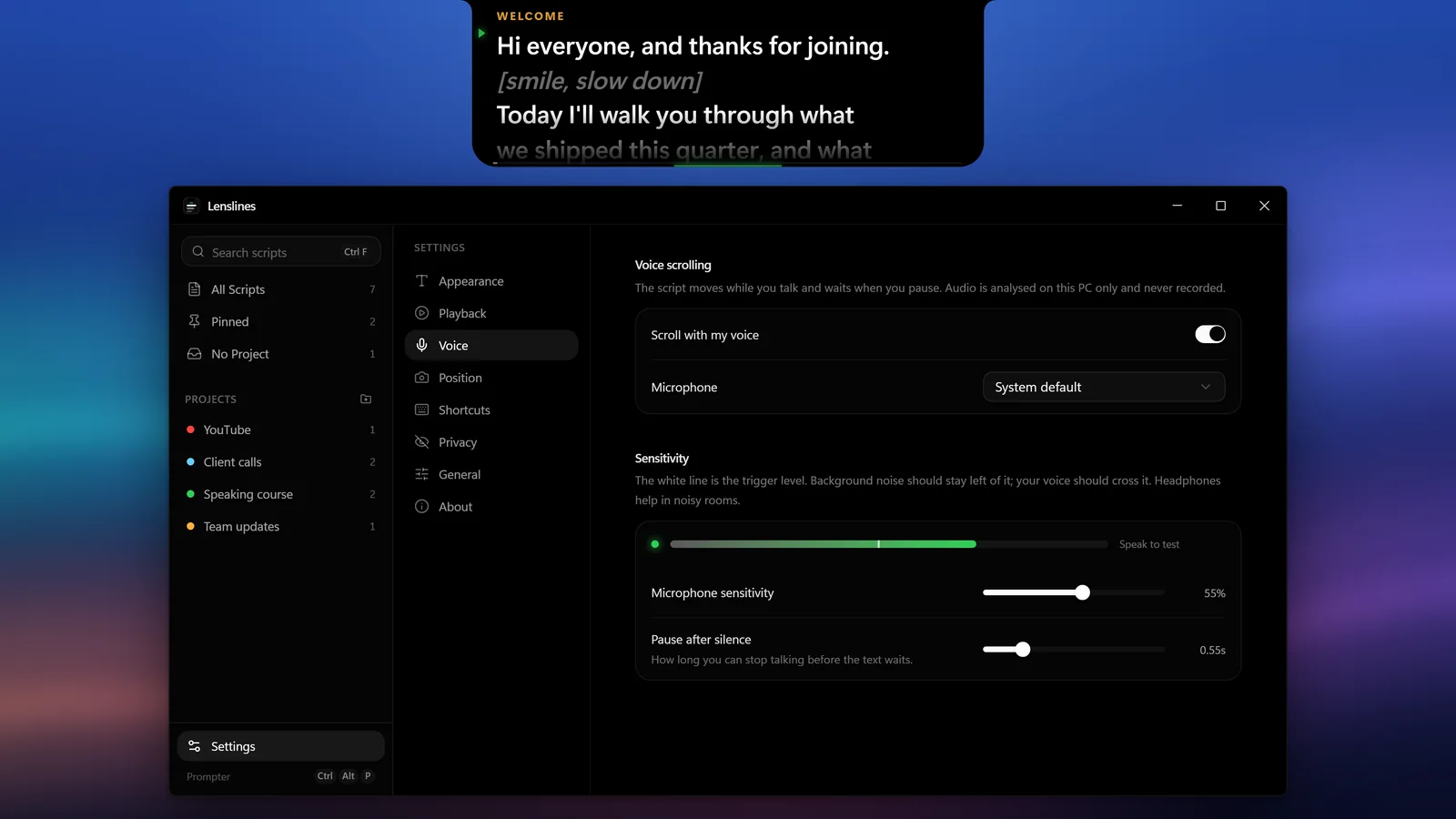
Turn on voice scrolling and the text moves while you speak and waits when you pause. It listens for your voice, not for particular words, so you can rephrase or add a joke without the prompter losing track.
Your audio is analyzed in memory on your PC to detect when you are speaking. It is never recorded, never stored and never uploaded, and the microphone is only in use while voice scrolling is on. You can also share the microphone with your call app at the same time, so Zoom or Teams keeps hearing you normally.
Point to pause, and jump to any cue
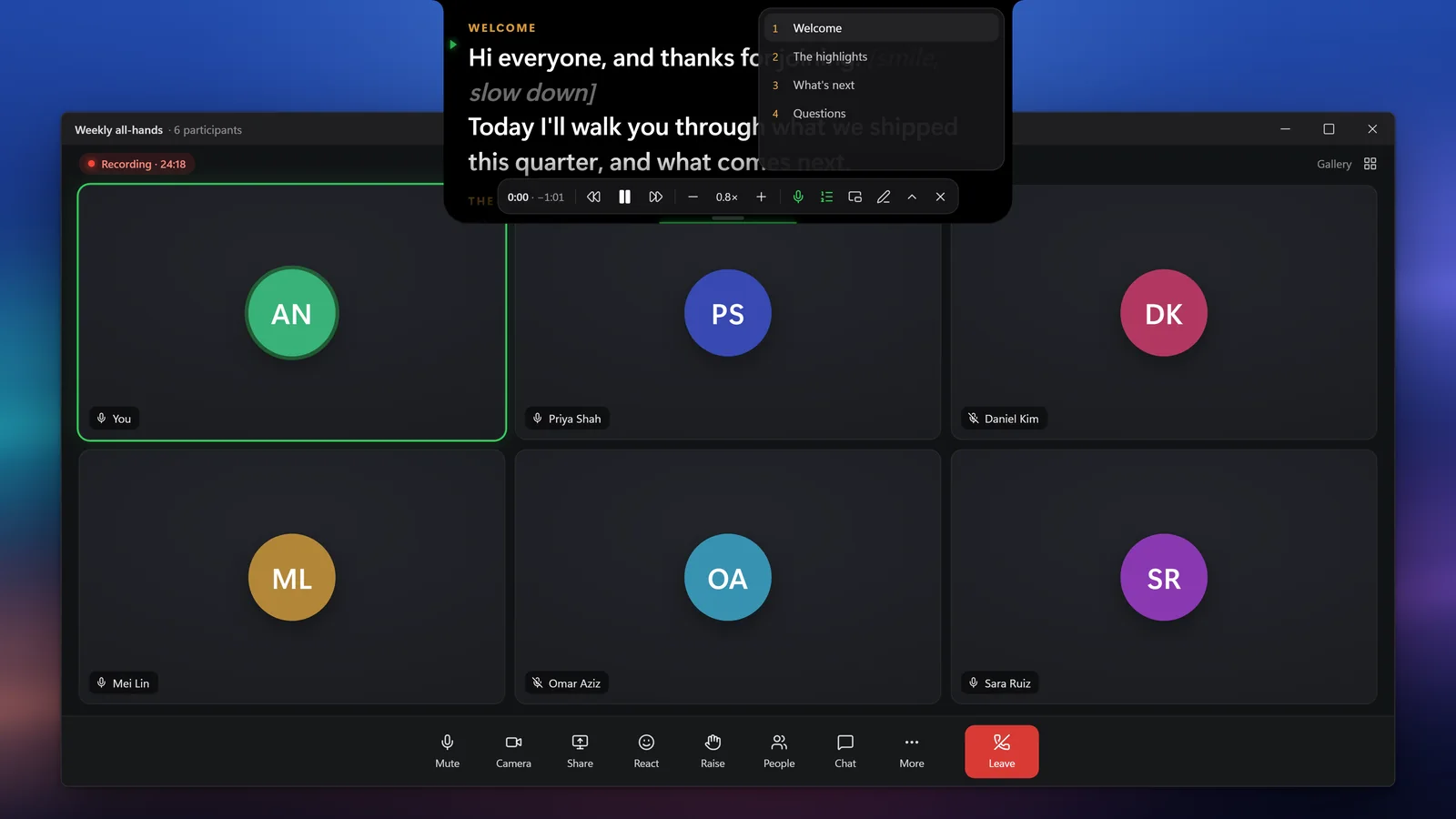
Point at the prompter and it pauses. Move away and it carries on. Scroll with your mouse wheel or trackpad to rewind or skip ahead.
Start any line with a hash mark (#) and it becomes a cue. When someone asks a question and you go off script, open the cue list or press a shortcut to jump straight back to the right section. Speed runs from 0.2x to 4x, about 180 words a minute at 1x, with an optional 3, 5 or 10 second countdown.
Every shortcut works from any app, and you can change all of them:
| Action | Shortcut |
|---|---|
| Show or hide the prompter | Ctrl+Alt+P |
| Play or pause | Ctrl+Alt+Space |
| Voice scrolling on or off | Ctrl+Alt+V |
| Previous or next cue | Ctrl+Alt+PgUp or PgDn |
| Slower or faster | Ctrl+Alt+Left or Right |
A calm home for all your scripts
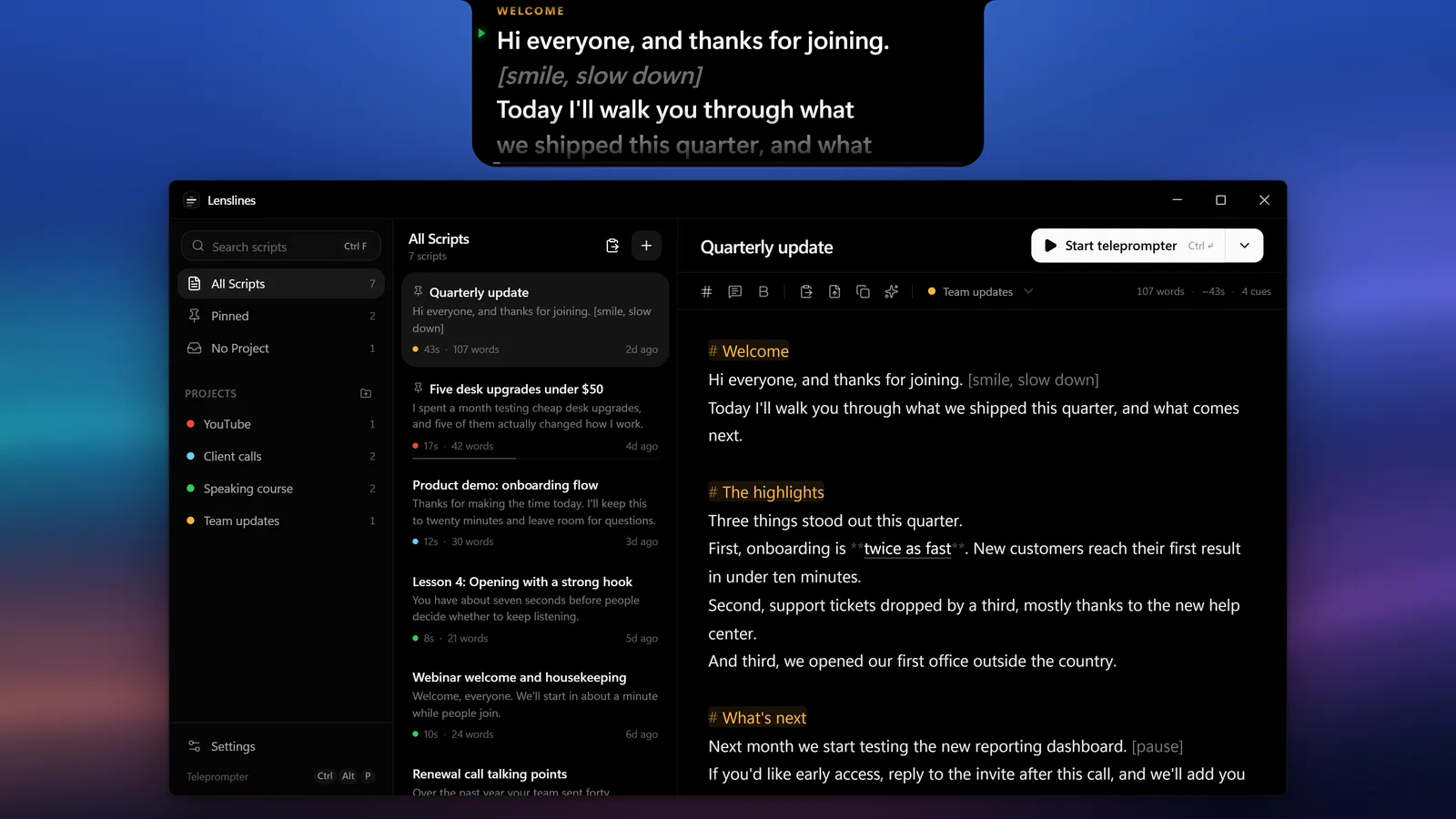
Lenslines keeps your scripts in a simple library with projects, pinning and search. Paste from Word, Google Docs or a web page and the formatting is cleaned up for you. You can also import .txt, .md and .rtf files, or drag them straight in.
The editor highlights your cues and notes as you type. Anything in [square brackets] shows dimmed on the prompter, which is perfect for reminders like "slow down" or "show the chart". Each script shows its word count and an estimated reading time, so you know if your talk fits the slot. Our post on how many words fit in a 5 minute speech helps with that part.
Float it anywhere, and make it yours
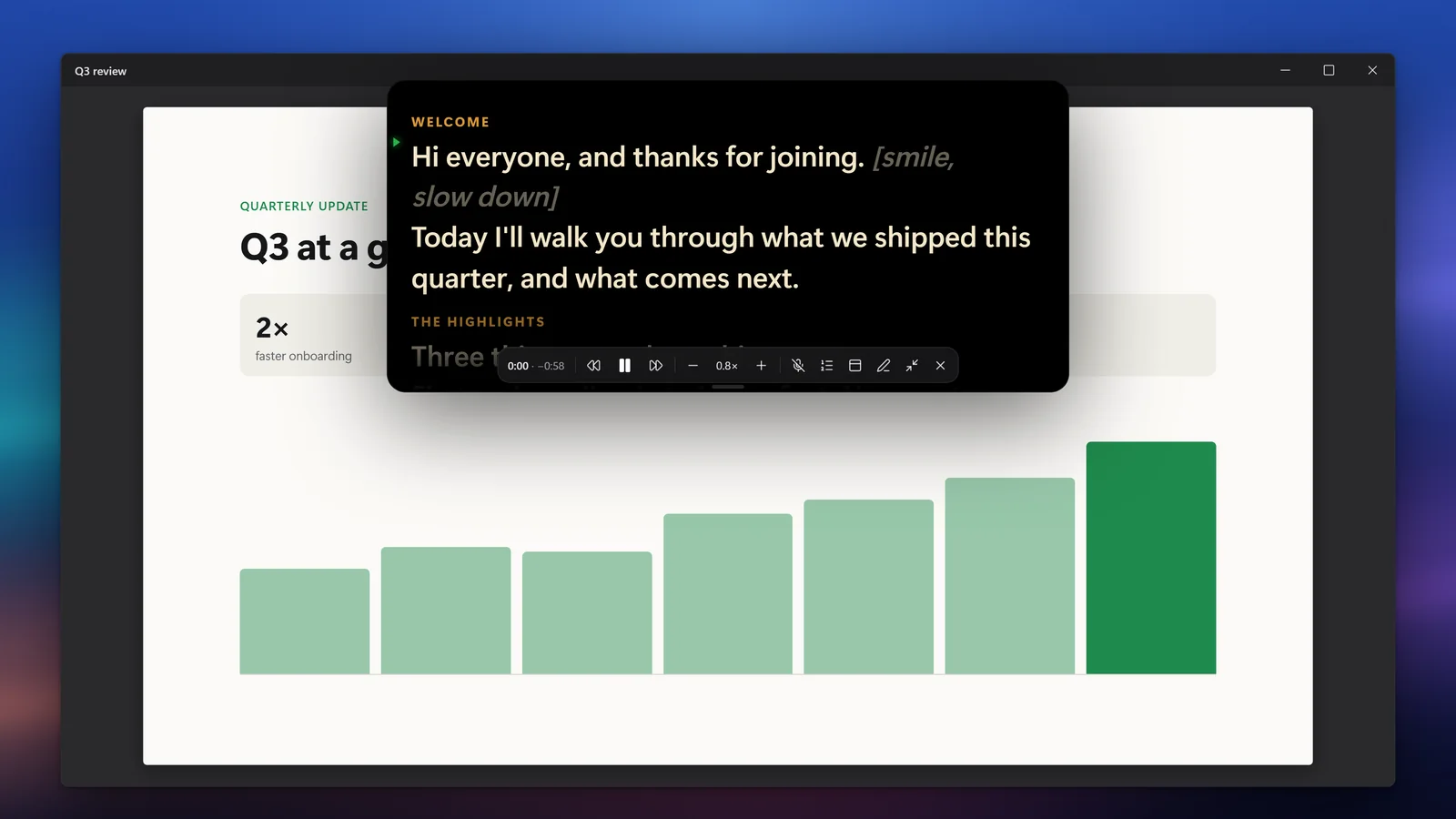
Pull the notch down and it turns into a floating window. Make it any size, put it anywhere, and set how see-through the background is. If you use a teleprompter glass or a beam splitter rig, you can mirror the text horizontally or vertically.
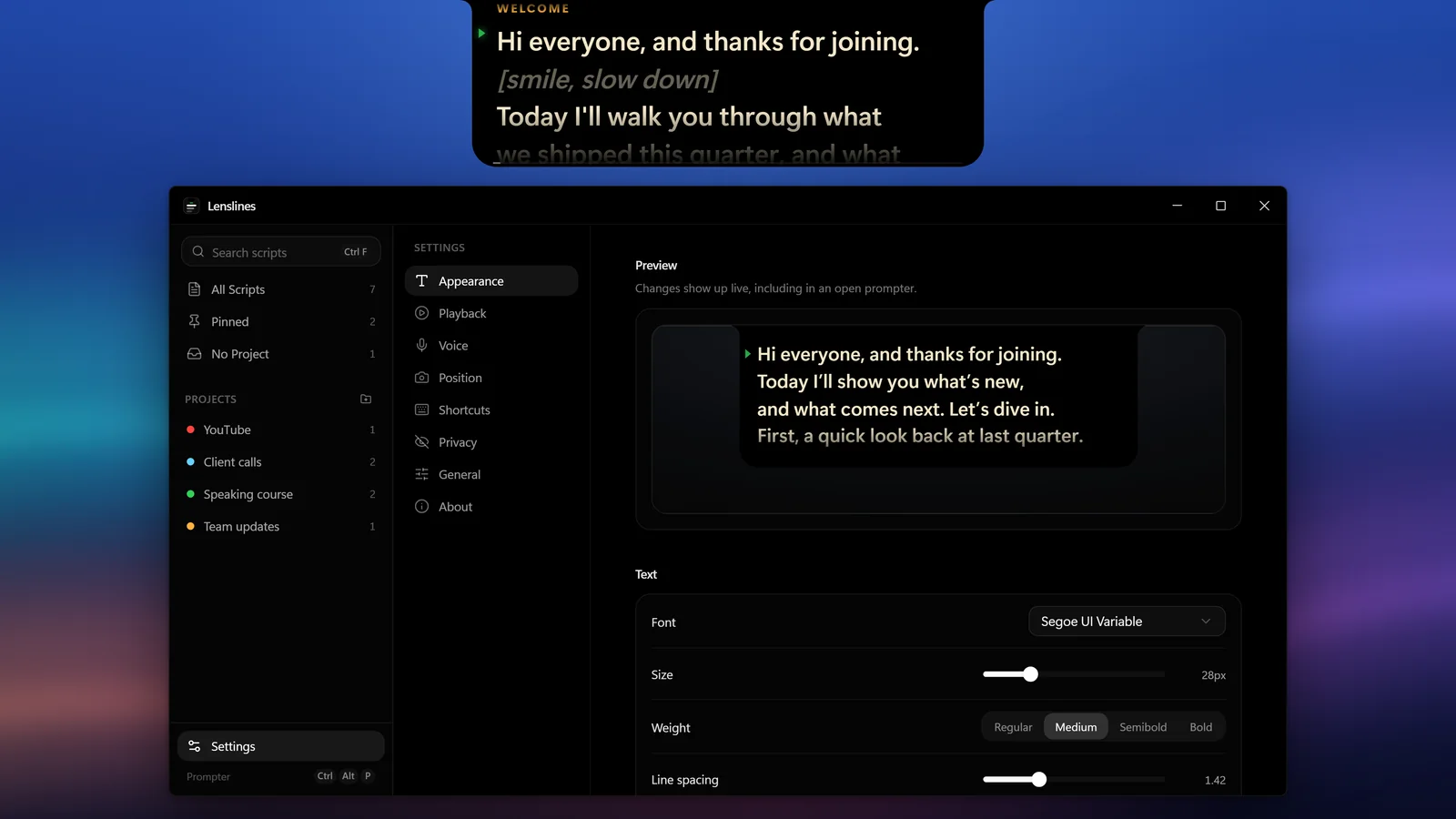
Choose the font, size, weight, line spacing and text color, plus a reading line marker and a soft fade at the top and bottom. Every change shows up live, including in an open prompter.
Light, private and yours to keep
- Small. About a 2 MB download. It waits in the notification area using a few megabytes of memory and no CPU until you need it.
- Private. No account, no sign in, no cloud and no tracking in the app. Your scripts are files on your PC, and it works offline.
- Never in the way. Clicking the prompter doesn't take focus away from your Zoom, Teams or PowerPoint window.
- One price. $9.99, once, on the Microsoft Store. Updates are free, and you can install it on your PCs that use the same Microsoft account. There is also a launch offer in India for the first month.
- Runs on Windows 11 and Windows 10 (version 2004 or later), 64 bit.
Who Lenslines is for
We built it for anyone who talks to a camera and wants to sound prepared without looking like they are reading:
- YouTubers and creators recording talking head videos;
- teachers, tutors and course creators;
- sales and customer success teams on calls;
- anyone presenting on Zoom, Teams or Meet, from all hands meetings to webinars;
- podcasters and voice over artists, who usually prefer the floating window;
- founders recording pitch videos and product demos;
- anyone who speaks English as a second language and likes a script to lean on.
You can read more on the Lenslines teleprompter for Windows page, or see how it fits into a Zoom call.
What comes next
This is version 1, and it will keep getting better through free updates. If something gets in your way, or there is a feature you would love, email hello@lenslines.in. Every message is read by the person who builds Lenslines.
Frequently asked questions
Is Lenslines free?
No. Lenslines is a one-time purchase of $9.99 on the Microsoft Store, with no subscription and free updates. There is no trial version, because the Store takes payment before the download.
Does Lenslines work on a Mac?
No. Lenslines is made for Windows 11 and Windows 10 (version 2004 or later), 64 bit. There is no Mac version.
Will people see my script when I share my screen?
No, not in apps that use Windows' standard screen capture, which includes Zoom, Microsoft Teams, Google Meet, OBS and the Snipping Tool. You can turn the protection off when you want the prompter to be visible.
Does Lenslines need the internet or an account?
No. There is no account to create, and the app works fully offline. Your scripts and settings stay on your PC.
Does voice scrolling record my voice?
No. Audio is analyzed in memory on your PC to tell when you are speaking. It is never recorded, stored or uploaded.