Presenting
How to use PowerPoint Presenter View on one screen (Windows)
Start Presenter View with one monitor, share only your slides on Zoom or Teams, and know when a simpler setup works better.
By Abhijeet Naik · · 7 min read
You can use PowerPoint Presenter View on one screen. Press Alt+F5 and PowerPoint starts the slide show in Presenter View, with your notes, even without a second monitor. The catch is that Presenter View then covers your whole display. On a video call, that means you share only the slides, never your entire screen, or everyone sees your notes too.
Below are the exact steps for PowerPoint on Windows, then for Zoom and Microsoft Teams. The PowerPoint steps follow Microsoft's own help pages, checked in November 2026. Menus move around between versions, so if a button name doesn't match yours, look for the closest one.
What does Presenter View show on one screen?
Presenter View is your private control panel for a slide show. Microsoft's guide to seeing your notes in Presenter View lists what's on it:
- the current slide, large on the left;
- your speaker notes in a pane on the right, with buttons to make the text bigger or smaller;
- Previous and Next buttons, plus a preview of the next slide;
- See all slides, to jump anywhere in the deck;
- Zoom into slide, a pen and a laser pointer;
- a button to black out the slide show.
With two monitors, the audience gets the full-screen slides on one display and you get Presenter View on the other. With one monitor, both have to live on the same display. Presenter View sits on top, and the full-screen slide show waits in a window behind it.
So on a call, everything depends on what you share.
| What you share | What people see | Are your notes safe? |
|---|---|---|
| Your entire screen | Presenter View, notes and all | No |
| The slide show window | The full-screen slides | Yes |
| A portion of the screen (Zoom) | Whatever sits inside the green border | Yes, if the border covers only the slide |
| A windowed slide show | The slides in a window, without Presenter View | Yes |
How to start Presenter View with one monitor
There are two ways, and both come from Microsoft.
The shortcut. Press Alt+F5. Microsoft's list of slide show keyboard shortcuts describes it as "Start the presentation in Presenter View."
The menu.
- On the Slide Show tab, select From Beginning, or press F5.
- Move your mouse to the bottom left of the slide to bring up the control bar.
- Select the button with three dots.
- Select Show Presenter View.
Once you're in, these keys save a lot of fumbling. They all come from the same Microsoft shortcut list.
| Key | What it does |
|---|---|
| Alt+F5 | Start the slide show in Presenter View |
| Shift+F5 | Start from the slide you're on |
| Ctrl+Down or Ctrl+Up | Scroll your notes one line |
| A slide number, then Enter | Jump straight to that slide |
| B or the period key | Black screen, press again to come back |
| Ctrl+H | Hide the mouse pointer |
| Esc | End the slide show |
How to use Presenter View on one screen with Zoom
This trick comes from a staff blog post at NTNU, a university in Norway. It uses Zoom's option to share only part of your screen. Zoom's help page on sharing your screen calls it Portion of screen, marked by a green border.
- Join your Zoom meeting and open your deck in PowerPoint.
- In PowerPoint, press Alt+F5. Presenter View fills your screen.
- Press Alt+Tab to switch to Zoom.
- Click Share, open the Advanced tab, choose Portion of screen, then click Share.
- Press Alt+Tab to go back to Presenter View.
- Drag the sides and corners of the green border so it covers the current slide and nothing else.
- Move through your slides with Next or the arrow keys. People see only what's inside the border.
Some honest trade-offs:
- The audience sees the slide at the size it has inside Presenter View. It's a little smaller and softer than a full-screen share.
- If you open See all slides or zoom into a slide, the picture inside the border changes, and people see that too.
- Don't resize the panes in Presenter View after you set the border, or the slide moves out of it.
Want crisp, full-size slides on Zoom with one screen instead? Run the slide show in a window and share just that window. The steps are in our post on reading your notes while sharing your screen. You give up Presenter View that way, so your notes go in a separate window beside the slides.
How to use Presenter View on one screen with Microsoft Teams
For Teams, the same NTNU post shares the slide show window itself.
- In PowerPoint, press Alt+F5. Presenter View opens, and the full-screen slide show opens in a window behind it.
- Press Alt+Tab to switch to Teams.
- Select Share. Under Window, pick the PowerPoint slide show window, not your entire screen.
- Press Alt+Tab to get back to Presenter View, and present from there.
Teams also has PowerPoint Live, which shows your notes next to your slides right inside Teams. It's often the simpler choice if your file is a .pptx. Our page on presenting with notes in Microsoft Teams has more tips.
Whichever route you pick, run a test first. Start a meeting on your own, or ask a friend to join from their phone, and look at what they see. On one screen this matters more, because one wrong click in the share menu sends out your notes.
When is there an easier way than Presenter View?
Presenter View on one screen works, but it's a juggling act. Here are three honest reasons to skip it.
- Your eyes go to the notes, not the camera. On a laptop, the webcam sits at the top center. The notes pane sits on the right, lower down. People notice your eyes leave them each time you read. Our guide on keeping eye contact on video calls explains why that small shift matters.
- You can't see the call. Presenter View covers the chat, raised hands and faces.
- You need other apps. If you jump to a browser or a live demo halfway through, the setup falls apart.
Simpler options, from free to paid:
- A windowed slide show with notes beside it. Free, and it works in every meeting app.
- Notes on a phone or tablet. Prop it next to your laptop, as close to the webcam as you can. Free, and nothing to hide from the share.
- A small prompter under your webcam. Lenslines is one option for Windows. It shows your notes in a black notch at the top of your screen, right under the webcam, so your eyes stay close to the lens.
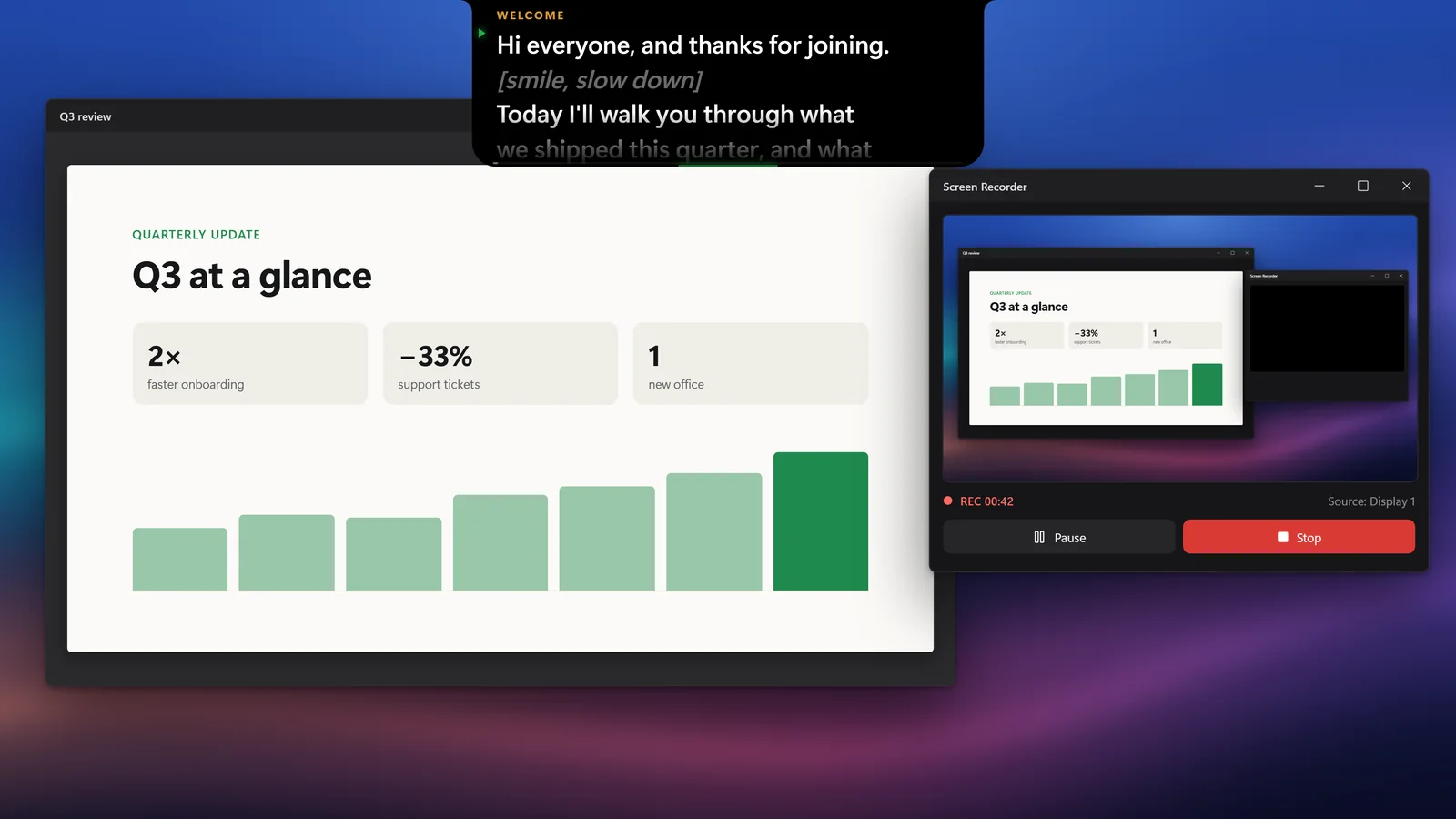
Lenslines is hidden from screen shares and recordings in apps that use Windows' standard capture, which is nearly all of them, including Zoom and Teams. That means you can share your whole screen, switch between apps freely, and still read your notes. Copy your speaker notes out of PowerPoint and paste them in. It's $9.99 as a one-time purchase on the Microsoft Store, with no subscription. Test it once with your own meeting app before a real talk.
Lenslines runs on Windows PCs. On your phone? Send yourself the link.
Frequently asked questions
Can you use Presenter View with only one monitor?
Yes. Press Alt+F5, or start the slide show, open the three dots menu at the bottom left and select Show Presenter View. It then covers your whole screen. That's fine for practice. On a call, share only the slide show window or a portion of your screen, never your entire screen.
Why can people see my notes in Presenter View?
You're sharing your entire screen, and on one monitor Presenter View is what's on it. Stop sharing, then share only the slide show window in Teams, or a portion of the screen around the slide in Zoom. With two monitors, share the screen that shows the slide show.
How do I switch between Presenter View and my meeting app on one screen?
Press Alt+Tab. If you shared a window, switching doesn't change what people see. If you shared a portion of your screen in Zoom, they see whatever sits inside the green border at that moment, so switch back to Presenter View quickly.
Does Presenter View work in Google Meet with one screen?
Google Meet lets you present a tab, a window or your entire screen. Choose the PowerPoint slide show window, never your entire screen, then switch back to Presenter View with Alt+Tab. Google's help pages don't cover this setup, so test it with a second device before you rely on it.
How do I make my notes bigger in Presenter View?
Use the two text size buttons at the lower left of the notes pane. Bigger text means shorter glances, which keeps your eyes up and your voice steady. Break long notes into short lines before the talk, too.