Teleprompters
Can you use your laptop as a teleprompter? Yes, here's how to set it up
Yes, your laptop can be a teleprompter. Here is where to put the text, how big to make it, how fast to scroll it, and the free and paid ways to do it on Windows.
By Abhijeet Naik · · 9 min read
Yes, you can use your laptop as a teleprompter, and you don't need any extra hardware. Put your script in a narrow strip right under the webcam, keep each line short, and let it scroll at the speed you speak. Your eyes stay close to the lens, so you look at your audience while you read. That is all a teleprompter for laptop calls and recordings has to do. The steps below show you how to set it up on any Windows laptop in about 10 minutes, plus the free tools you can use and when a dedicated app is worth paying for.
Why a laptop works as a teleprompter
A studio teleprompter puts the words on angled glass in front of the camera, so the speaker reads straight down the lens. A laptop can't do that. What it can do is put the words a short distance below the lens, and on a video call or a desk recording, that is close enough for most people.
The reason is simple geometry. Your webcam sits in the bezel above the screen. If you read from the middle of the screen, your eyes point well below the lens and you look like you're staring at your keyboard. If you read from the top edge, right under the camera, your eyes barely move away from it. Viewers see someone looking at them, maybe glancing down a little now and then.
So the whole trick is placement. Text under the lens, short lines, steady speed. Our guide on how to keep eye contact on video calls explains the angles in more detail.
How to set up a teleprompter on your laptop, step by step
These steps work on any Windows laptop with a built-in webcam, whatever tool you use to show the script.
- Find your webcam. On most laptops it's a small lens in the middle of the top bezel. Open the Camera app from the Start menu and look at the preview to be sure. A few models put the lens below the screen or in a pop up key. If yours sits low, the same idea applies: put the text as close to the lens as you can.
- Raise the laptop to eye level. Put it on a stand, a box or a stack of books until the lens is level with your eyes or slightly above. Tilt the screen until it's nearly upright. A laptop flat on a desk films you from below and makes every downward glance look bigger.
- Sit about an arm's length away. Roughly 2 feet suits most people. Sitting a little farther back makes your eye movements smaller on camera, but you'll need bigger text to read comfortably.
- Make the script window small and put it at the top center. Drag it right up under the lens. Make it wide enough for about 5 to 8 words a line and tall enough to show 3 to 5 lines. Wider lines make your eyes sweep from side to side, which is the clearest sign that someone is reading.
- Pick a font size you can read without leaning in. Start around 24 to 30 px on a laptop, with light text on a dark background and a plain font such as Segoe UI or Arial. If you lean forward, go bigger. If you can see just a few words at once, go smaller. Our guide to teleprompter settings for webcam recording covers size, spacing and color in detail.
- Set the scroll speed to your speaking pace. Most people present at around 130 to 150 words a minute, and this chart of how many words fit in a 5 minute speech shows how to measure your own pace in 2 minutes. Set the speed a little slower than you think. Chasing the text makes you rush.
- Record a 30 second test. Use the Camera app's video mode and read a paragraph. Watch it back with the sound off. If your eyes move side to side, narrow the window. If they look down, move the text higher or closer to the lens.
How to read a script while looking at the camera on a laptop
Good placement gets you most of the way. The rest is how you read.
- Read at the top of the window. Let the text scroll up into the line nearest the lens. Don't read ahead at the bottom of the window, where your eyes drop.
- Look into the lens at the moments that matter. Learn your opening and closing lines well enough to say them to the camera. When you hit a key point, read the line, then lift your eyes to the lens for the last few words.
- Write for speaking. Short sentences are easier to read aloud and easier to fit on a short line. Mark pauses with a line break so you remember to breathe.
- Pause when you lose your place. Stop, look at the camera, find the line, carry on. A silent pause looks calm. A scramble looks like reading. If filler words creep in at these moments, try these tips on how to stop saying um.
- Rehearse twice. Two read throughs out loud before you record or join a call make the words feel like yours. You'll sound less like you're reading.
For more on sounding natural, see how to read a script without sounding robotic.
Lighting and camera height tips
A teleprompter helps your eyes. Light and angle decide whether people can see them.
- Face the light. A window in front of you, or a lamp behind the laptop, lights your face evenly. A bright window behind you turns you into a dark shape.
- Lower the screen brightness a little. A big white window glows on your face and shows up in glasses. A dark script background with light text avoids most of this.
- Watch for glare on glasses. Move your lamp higher or off to one side, and tilt the screen slightly down. Check the result in the Camera app before you start.
- Keep head and shoulders in frame. Leave a little space above your head. If your face fills the frame, small eye movements look large.
- Clean the lens. Laptop lenses pick up fingerprints from opening and closing the lid. A quick wipe with a soft cloth makes the picture sharper.
- Don't record with the laptop on your lap. The camera points up at your chin and every glance at the screen looks like a look down.
Free ways to turn your laptop into a teleprompter
You can do all of this for free. Each option works, with a few trade-offs.
A small text window pinned on top. Paste your script into Notepad, use Ctrl and the plus key to make the text bigger, and drag the window to the top center under the webcam. A dark theme makes the text easier to read. To keep it above your call window, Microsoft's free PowerToys has an Always On Top tool: press Win+Ctrl+T to pin the active window. You scroll by hand, with the trackpad or mouse wheel.
A browser teleprompter. Several websites turn a browser tab into a scrolling prompter, and most are free to start. Paste your script, set the speed, then make the browser window small and drag it under the webcam. They scroll by themselves, which is a big step up from Notepad.
PowerPoint's Teleprompter view. If you record a talk with slides, PowerPoint's Record feature has a Teleprompter view that shows your notes for the current slide above the slide preview, with auto scroll. You switch to it from the Views menu in the Record window, as Microsoft explains in its guide to recording your presentation. It's made for recordings in PowerPoint, not for live calls.
The catch with the free options shows up on live calls. If you share your whole screen, any normal window shows too, including your notes. You can share a single app window instead, but then you have to remember to do it every time.
| Option | Cost | Where the text sits | Scrolling | Seen in a whole screen share |
|---|---|---|---|---|
| Notepad pinned on top | Free | Wherever you drag it | By hand | Yes |
| Browser teleprompter | Free to start | Wherever you drag the window | Set speed | Yes |
| PowerPoint Teleprompter view | Comes with PowerPoint | Near the top of the Record window | Auto scroll | For recordings, not live calls |
| Lenslines | $9.99 one-time | Docked under the webcam | Your voice or a set speed | No, in apps that use Windows' standard capture |
When a teleprompter app for your laptop camera is worth it
We make Lenslines, so weigh this part with that in mind. If you read a script on calls or recordings every week, the small chores of the free methods add up: placing the window, scrolling by hand, checking what you share. A dedicated app removes them.
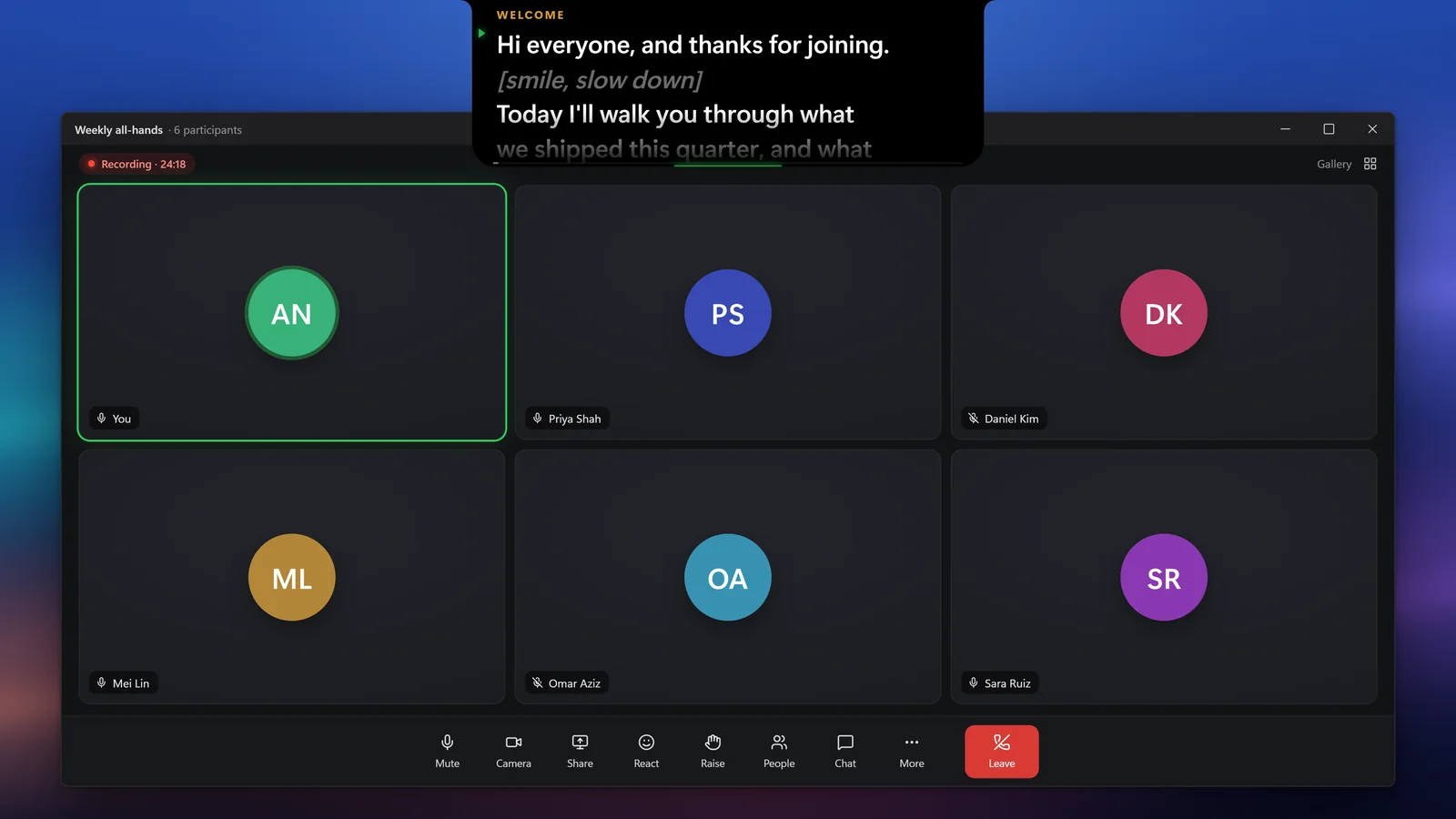
Lenslines is a teleprompter for Windows laptops and PCs. It shows your script in a black notch at the top center of the screen, right under the webcam, and it picks the screen your camera is on by itself. You can resize the notch from its edges to get short lines, or pull it down into a floating window. It can scroll with your voice: the text moves while you speak and pauses when you pause. If you'd rather use a set speed, 1x is about 180 words a minute, so 0.8x is a good start for most people.
It's also hidden from screen shares and recordings in apps that use Windows' standard capture, which is nearly all of them, including Zoom, Microsoft Teams and Google Meet. You see the script and the people on the call don't, even when you share your whole screen. The page on our teleprompter hidden from screen sharing explains how that works, and the notch teleprompter for Windows page shows the notch itself. If most of your calls are on Zoom, see how it fits with the teleprompter for Zoom setup.
It costs $9.99 as a one-time purchase on the Microsoft Store, with no subscription. In India, the Store shows ₹449 during the launch sale until 24 November 2026, down from ₹749. There's no trial version, so check that your laptop runs Windows 11 or Windows 10 (version 2004 or later), 64-bit.
Lenslines runs on Windows PCs. On your phone? Send yourself the link.
Frequently asked questions
Can I use a MacBook as a teleprompter?
Yes. A MacBook camera sits at the top center of the screen, so the same steps work: a narrow window or a browser prompter right under the lens, short lines and a steady speed. Lenslines runs on Windows 10 and 11 and is not available for Mac, but the free methods in this guide work on any laptop.
Can people on the call see my teleprompter?
Your webcam never films your screen, so the script is not in your video. It can show up when you share your screen. A notes window or browser tab appears in a whole screen share, but not if you share one app window. Lenslines is hidden from screen shares and recordings in apps that use Windows' standard capture. Keep lines short, too, or people may notice your eyes moving.
Do I need teleprompter glass for a laptop?
No. Glass rigs put the text directly over the lens, which helps if you sit far from the camera or record long videos. For calls and desk recordings, text right under the webcam is close enough for most people. If you do buy a rig later, you'll need software that can mirror the text.
What font size should I use on a laptop teleprompter?
Start at about 24 to 30 px if you sit around 2 feet from the screen. Use the smallest size you can read without leaning in. Light text on a dark background is easiest to read and keeps glare off your face and glasses.
Is there a free teleprompter for laptop use?
Yes. A Notepad window pinned on top with PowerToys, a browser teleprompter, or PowerPoint's Teleprompter view for slide recordings all cost nothing. They work well for occasional use. The trade-offs are placing the window yourself, scrolling by hand in some tools, and the script showing up if you share your whole screen.